Valeton GP50 + MVAVE Chocolate PLUS
Connect GP50 and Chocolate PLUS via Bluetooth
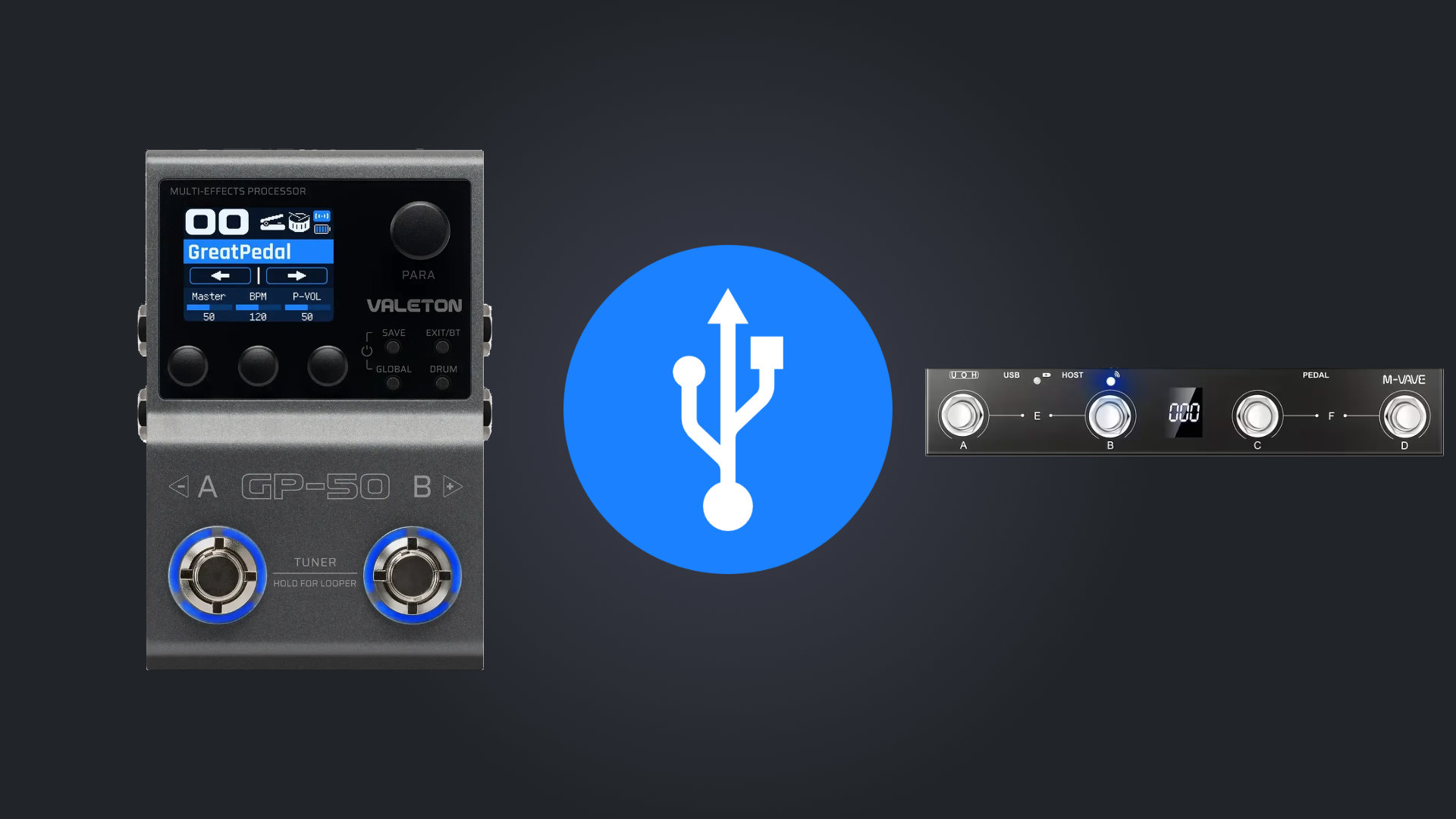
Before you start:
- Do a factory reset on the gp5. A lot of problems with connections with gp5 are fixed making a factory reset.
- USE A GOOD USB DATA CABLE, you can check if it is a data cable by plugin a phone to a computer and see if the computer can see it.
- THE GP50 DOESN'T NEED THE CHOCOLATE TO BE EXTERNALLY POWERED. It can work with the choco internal battery.
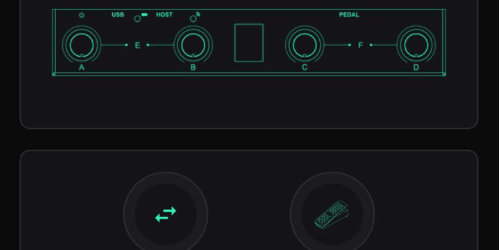
1 - Connect Chocolate
Connect to the chocolate pedal using Midi Suite (download from m-vave site)
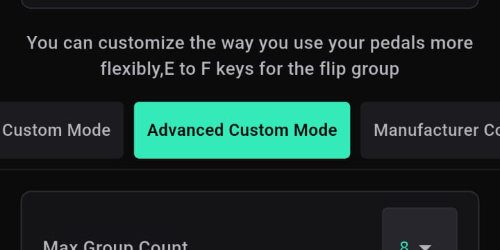
2 - Set Mode
In chocolate v1 set the mode to "Advanced Custom Mode"
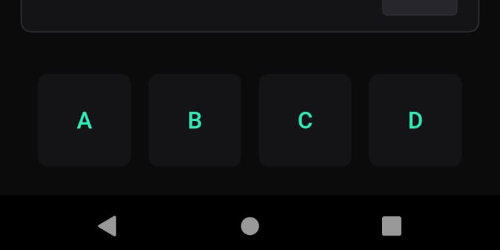
3 - Select footswitch
Choose one of the footswitchs
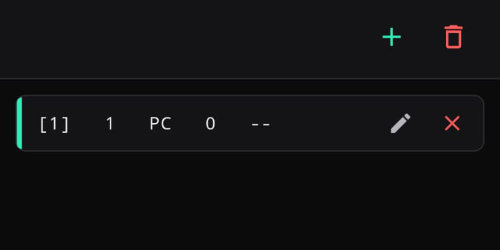
4 - Edit Command
Select the pencil icon to edit the command or erase and add a new one
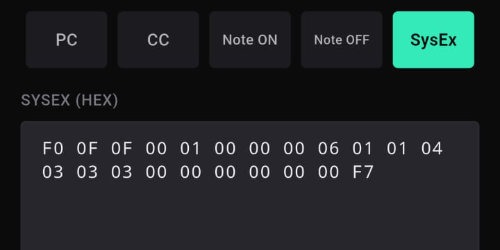
5 - Enter CC or Sysex code
Select type: CC or SysEx
When using USB you can use CC codes, or you can use special midi code called SYSEX. Enter the desired code, press save. (check list of codes here)
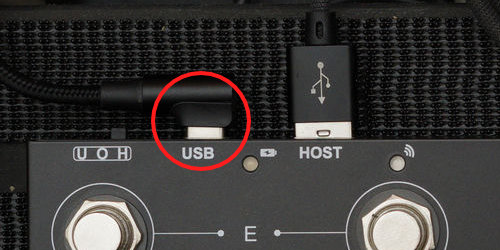
6 - Connect Chocolate to power
The chocolate needs to be connected to power to work as a USB HOST, you can use a power bank or power adapter. Connect it to the usb C port.
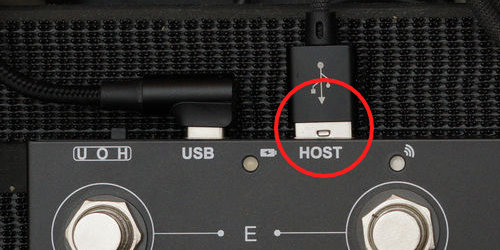
7 - Connect Chocolate to GP5
Use a USB A-C data cable to connect the chocolate to the gp5. In the chocolate use the HOST port (USB A port). The gp5 can use the 9v input at the same time, it does not interfere with the usc connection.
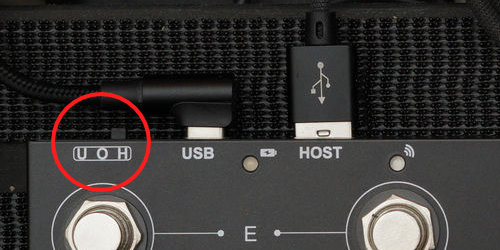
8 - Power On the Chocolate
Turn off (switch in middle position) then, turn ON the chocolate, moving the switch to H (right) to start the USB HOST mode.
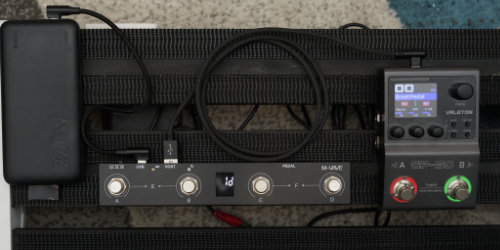
9 - Test
If everything is ok, now the chocolate is controlling the gp5 via usb.
Useful links:
- Guide from Ross Gallagher Music on chocolate via BT
- Guide from Gear on a Dimeon chocolate via USB
- Guide from Leon Brown Music for programming the chocolate
- Guide from Jorge Alburqueque for programming the chocolate for live setups
- Fix when you can't upgrade de gp series on windows
- Valeton GP Series Multi-Effects Modelling Pedals - FB group