Valeton GP5 + MVAVE Chocolate PLUS
Connect GP5 and Chocolate PLUS via Bluetooth

Before you start:
- Do a factory reset on the gp5. A lot of problems with connections with gp5 are fixed making a factory reset.
- YOU HAVE TO POWER THE CHOCOLATE EXTERNALLY WHEN TURNING THE CHOCOLATE ON. To start USB HOST the Chocolate must send 5v to the gp5. That's because the internal battery of the Chocolate only delivers 3.7v, and can't start USB HOST communication.
- You can however have the gp5 powered or not via the 9v input.
- USE A GOOD USB DATA CABLE, you can check if it is a data cable by plugin a phone to a computer and see if the computer can see it.
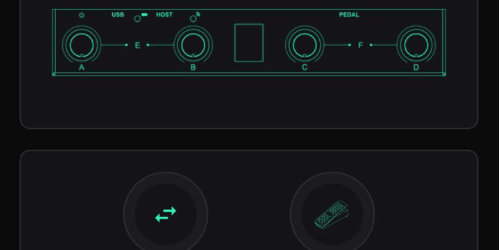
1 - Connect Chocolate
Connect to the chocolate pedal using Midi Suite (download from m-vave site)
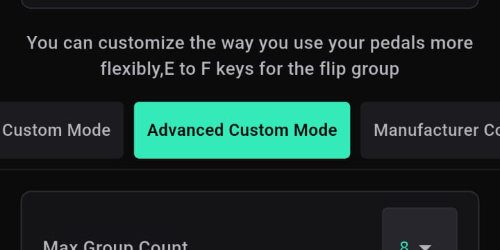
2 - Set Mode
In chocolate v1 set the mode to "Advanced Custom Mode"
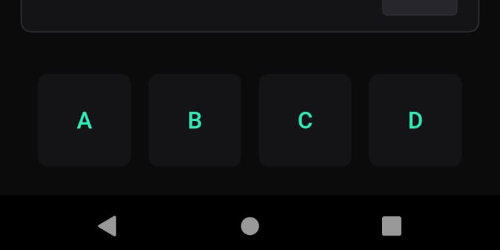
3 - Select footswitch
Choose one of the footswitchs
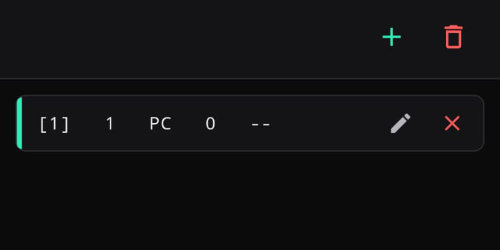
4 - Edit Command
Select the pencil icon to edit the command or erase and add a new one
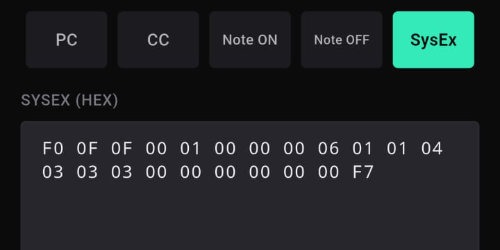
5 - Enter CC or Sysex code
Select type: CC or SysEx
When using USB you can use CC codes, or you can use special midi code called SYSEX. Enter the desired code, press save. (check list of codes here)
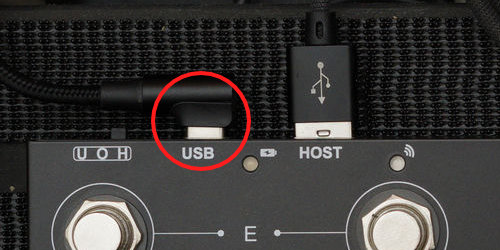
6 - Connect Chocolate to power
The chocolate needs to be connected to power to work as a USB HOST, you can use a power bank or power adapter. Connect it to the usb C port.
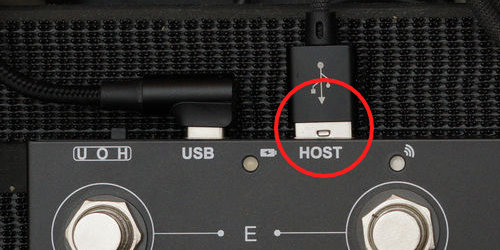
7 - Connect Chocolate to GP5
Use a USB A-C data cable to connect the chocolate to the gp5. In the chocolate use the HOST port (USB A port). The gp5 can use the 9v input at the same time, it does not interfere with the usc connection.
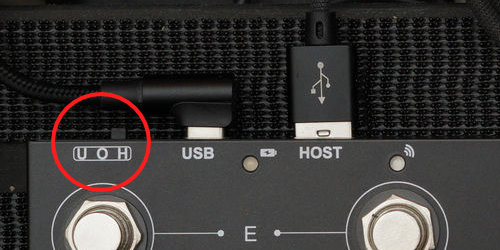
8 - Power On the Chocolate
Turn off (switch in middle position) then, turn ON the chocolate, moving the switch to H (right) to start the USB HOST mode.
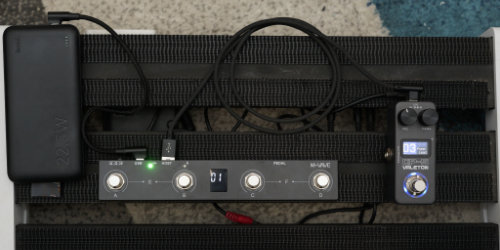
9 - Test
If everything is ok, now the chocolate is controlling the gp5 via usb.
Useful links:
- Guide from Ross Gallagher Music on chocolate via BT
- Guide from Gear on a Dimeon chocolate via USB
- Guide from Leon Brown Music for programming the chocolate
- Guide from Jorge Alburqueque for programming the chocolate for live setups
- Fix when you can't upgrade de gp series on windows
- Valeton GP Series Multi-Effects Modelling Pedals - FB group