Valeton GP50 + MVAVE Chocolate v1
Connect GP50 and Chocolatev1 via Bluetooth
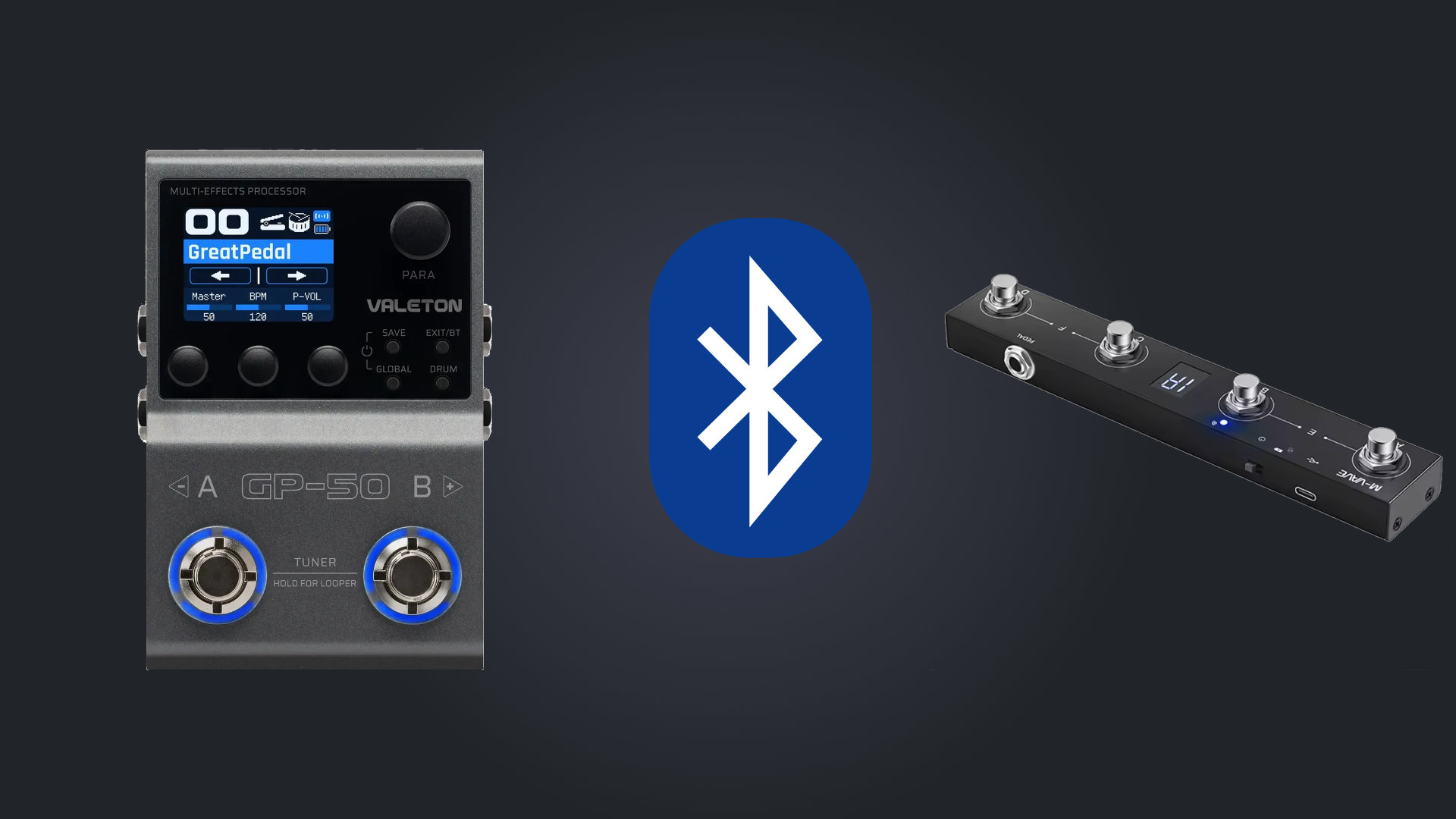
Before you start:
- The chocolate v1 must be updated to the latest version. There is a bug in the previous firmware related with the bluetooth communication.
- Do a factory reset on the gp5. A lot of problems with connections with gp5 are fixed making a factory reset.
- Bluetooth communication between gp5 and chocolate only accepts SYSEX codes.
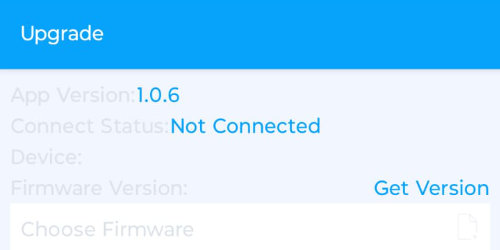
1 - Update Chocolate
Update the chocolate to the latest version, using the SincoOTA mobile app. It fixes a Bluetooth compability problem that affects the gp5 (download from m-vave site mobile firmware section) This is really messy its a buggy application and it takes a lot of tries to update the chocolate. See guide
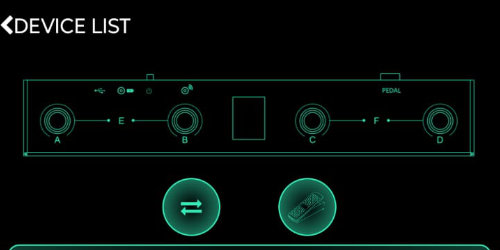
2 - Connect Chocolate
Connect the chocolate pedal using Cubesuit (download from m-vave site)
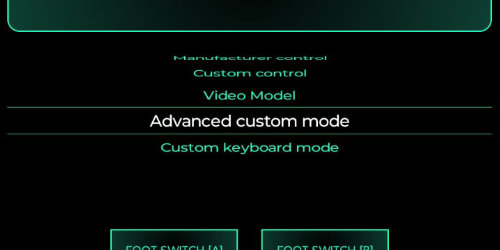
3 - Set Mode
In chocolate v1 set the mode to "Advanced Custom Mode"
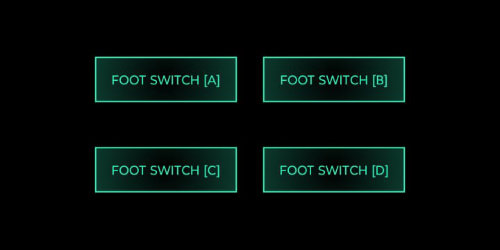
4 - Select footswitch
Choose one of the footswitchs
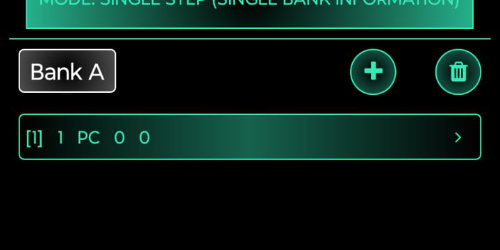
5 - Edit Command
Select the arrow icon to edit the command or erase and add a new one
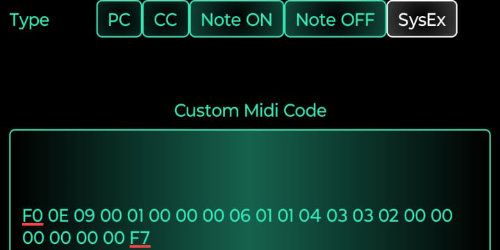
6 - Enter Sysex code
Select type: SysEx
When using bluetooth you can't use CC codes, you have to use special midi code called SYSEX. Enter the desired sysex code (check list of codes here)
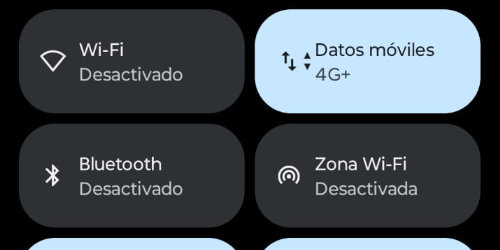
7 - Disable Phone Bluetooth
When finished all footswitches, exit the application and disable your phone BT (this is to assure the chocolate will connect to the gp5)
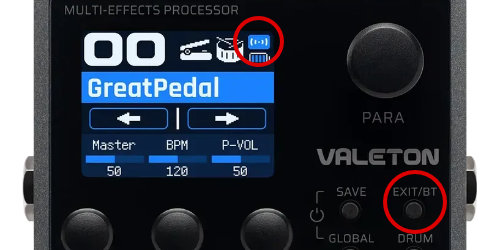
8 - Enable GP50 Bluetooth
In the gp50 turn on the BT by holding down the EXIT/BT button until the BT icon starts to blink. Make sure the icon stay blinking, if it stop it means that the gp50 is connected to something (phone, pc. etc)
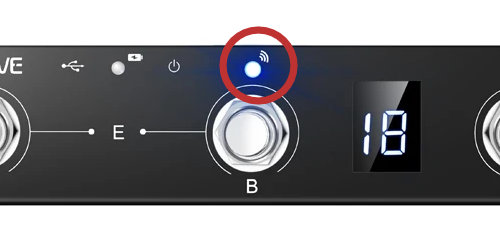
9 - Connect Chocolate
Turn on the chocolate, it will blink 2 or 3 times, and if everything is ok, it will connect to gp5 (the BT indicators in both devices should stop blinking)
Useful links:
- Guide from Ross Gallagher Music on chocolate via BT
- Guide from Gear on a Dimeon chocolate via USB
- Guide from Leon Brown Music for programming the chocolate
- Guide from Jorge Alburqueque for programming the chocolate for live setups
- Fix when you can't upgrade de gp series on windows
- Valeton GP Series Multi-Effects Modelling Pedals - FB group