Valeton GP5 + MVAVE Chocolate v1
Connect GP5 and Chocolatev1 via Bluetooth
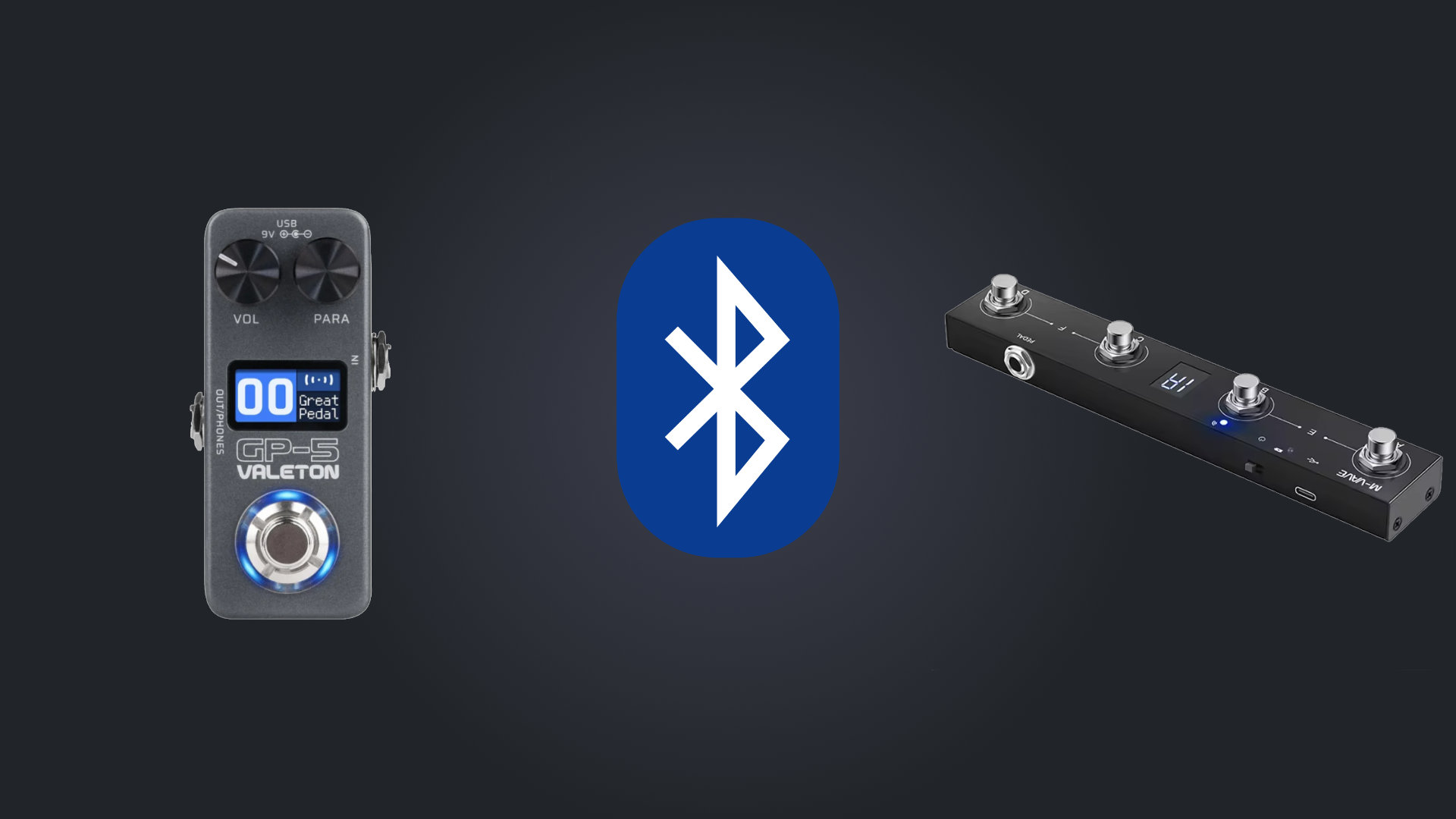
Before you start:
- The chocolate v1 must be updated to the latest version. There is a bug in the previous firmware related with the bluetooth communication.
- Do a factory reset on the gp5. A lot of problems with connections with gp5 are fixed making a factory reset.
- Bluetooth communication between gp5 and chocolate only accepts SYSEX codes.
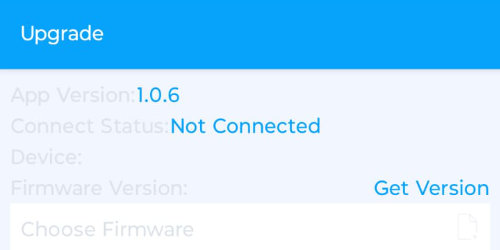
1 - Update Chocolate
Update the chocolate to the latest version, using the SincoOTA mobile app. It fixes a Bluetooth compability problem that affects the gp5 (download from m-vave site mobile firmware section) This is really messy its a buggy application and it takes a lot of tries to update the chocolate. See guide
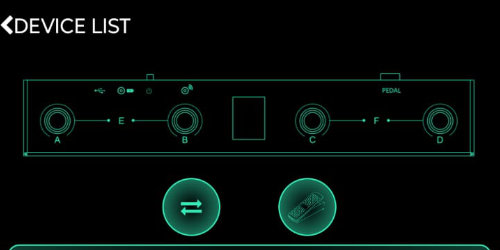
2 - Connect Chocolate
Connect the chocolate pedal using Cubesuit (download from m-vave site)
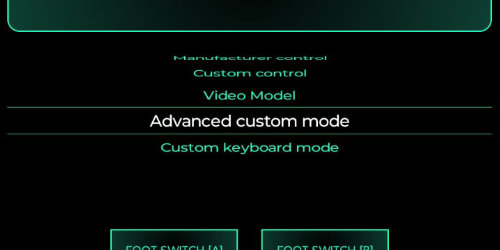
3 - Set Mode
In chocolate v1 set the mode to "Advanced Custom Mode"
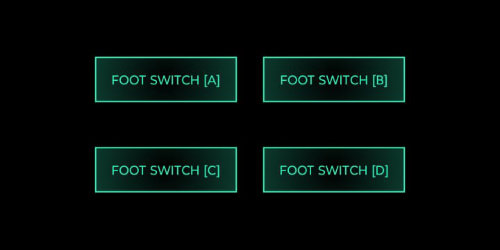
4 - Select footswitch
Choose one of the footswitchs
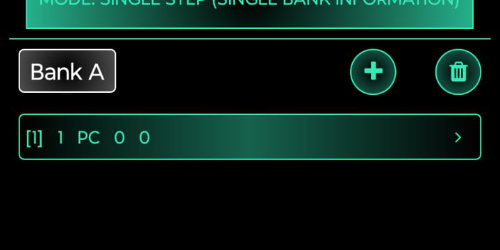
5 - Edit Command
Select the arrow icon to edit the command or erase and add a new one
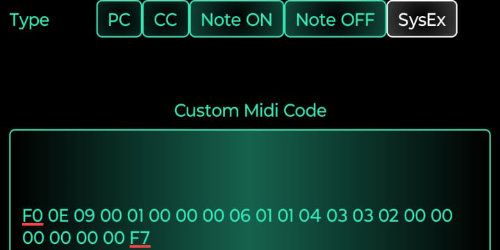
6 - Enter Sysex code
Select type: SysEx
When using bluetooth you can't use CC codes, you have to use special midi code called SYSEX. Enter the desired sysex code (check list of codes here)
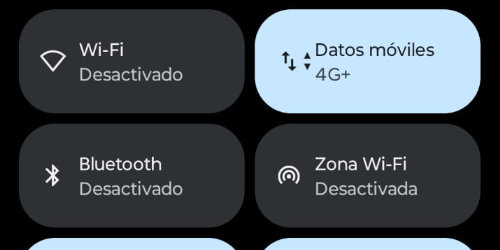
7 - Disable Phone Bluetooth
When finished all footswitches, exit the application and disable your phone BT (this is to assure the chocolate will connect to the gp5)
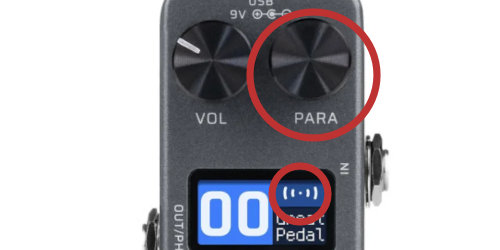
8 - Enable GP5 Bluetooth
In the gp5 turn on the BT by holding down the PARA button until the BT icon starts to blink. Make sure the icon stay blinking, if it stop it means that the gp5 is connected to something (phone, pc. etc)
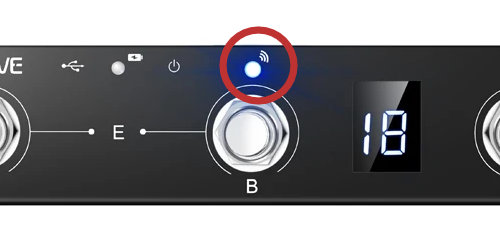
9 - Connect Chocolate
Turn on the chocolate, it will blink 2 or 3 times, and if everything is ok, it will connect to gp5 (the BT indicators in both devices should stop blinking)
Useful links:
- Guide from Ross Gallagher Music on chocolate via BT
- Guide from Gear on a Dimeon chocolate via USB
- Guide from Leon Brown Music for programming the chocolate
- Guide from Jorge Alburqueque for programming the chocolate for live setups
- Fix when you can't upgrade de gp series on windows
- Valeton GP Series Multi-Effects Modelling Pedals - FB group